Using Johnny.Decimal in Soot
Written by Rob, who makes Soot.
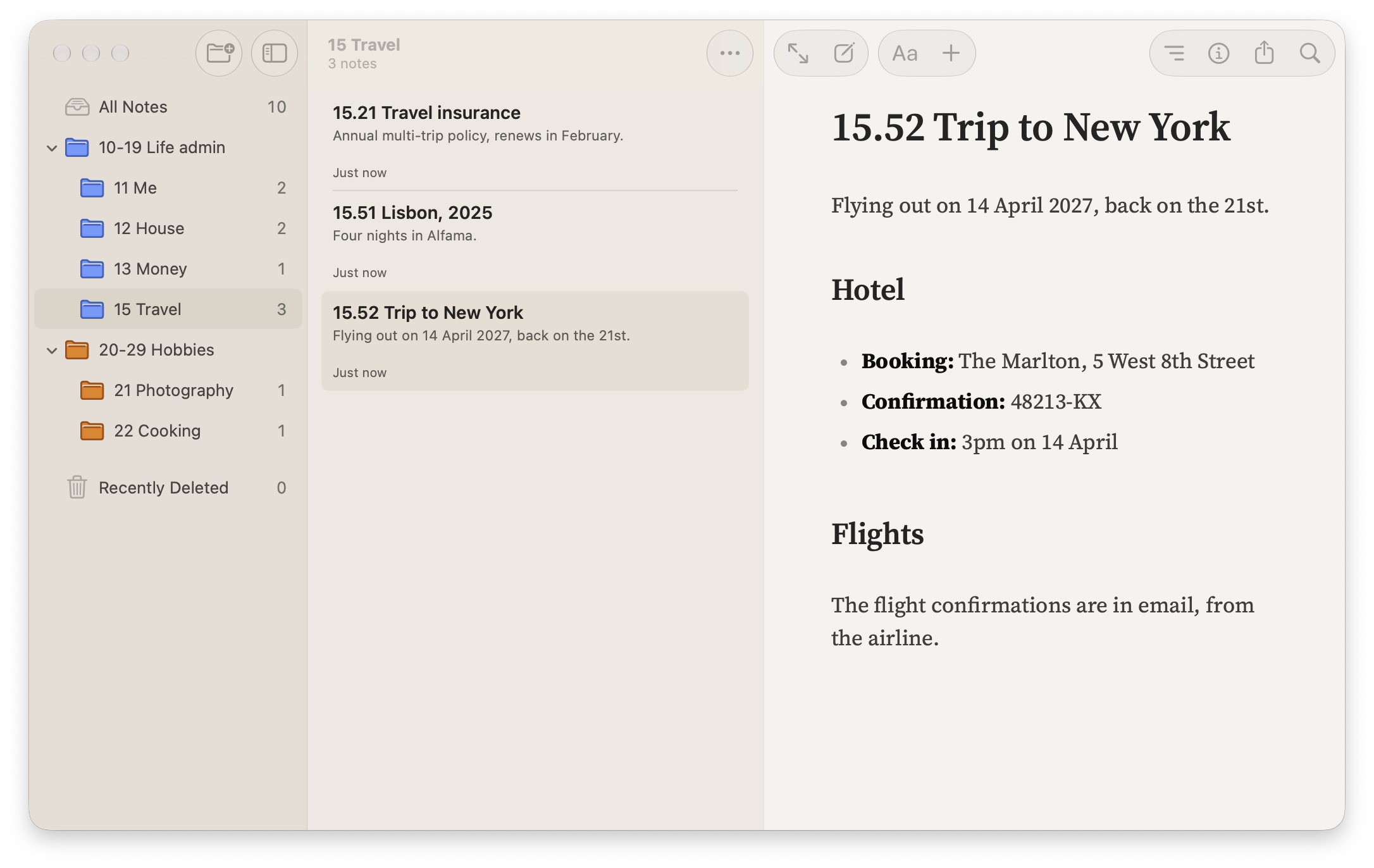
Johnny.Decimal is a way of organising your information by giving everything a number. You divide your life into areas, and each area into as many as ten categories. Inside a category, each thing you’re keeping track of gets an ID and a note, and creating the note is what creates the ID. 15.52 Trip to New York is ID 52 in category 15, Travel, which belongs to the area 10-19 Life admin.
My own notes are a personal wiki, without numbers. If Johnny.Decimal is how you’d like to keep yours, here’s how to set it up in Soot.
In Soot, the numbered folders organise your notes, and the notes themselves are your index: one note for each ID, with the ID in its title. There’s no separate master list to keep up. Soot doesn’t assign or check the numbers. You type them into folder names and note titles yourself.
Folders for areas and categories
Make a folder for each area, named with its range: 10-19 Life admin, 20-29 Hobbies. On the Mac, File ▸ New Folder… makes one. On the iPhone and iPad, it’s the New Folder button at the top right of the Folders screen.
Categories go inside their area. Right-click 10-19 Life admin, or touch and hold it on the iPhone and iPad, choose New Folder Inside… and call it 11 Me. Do the same for 12 House, 13 Money and 15 Travel.
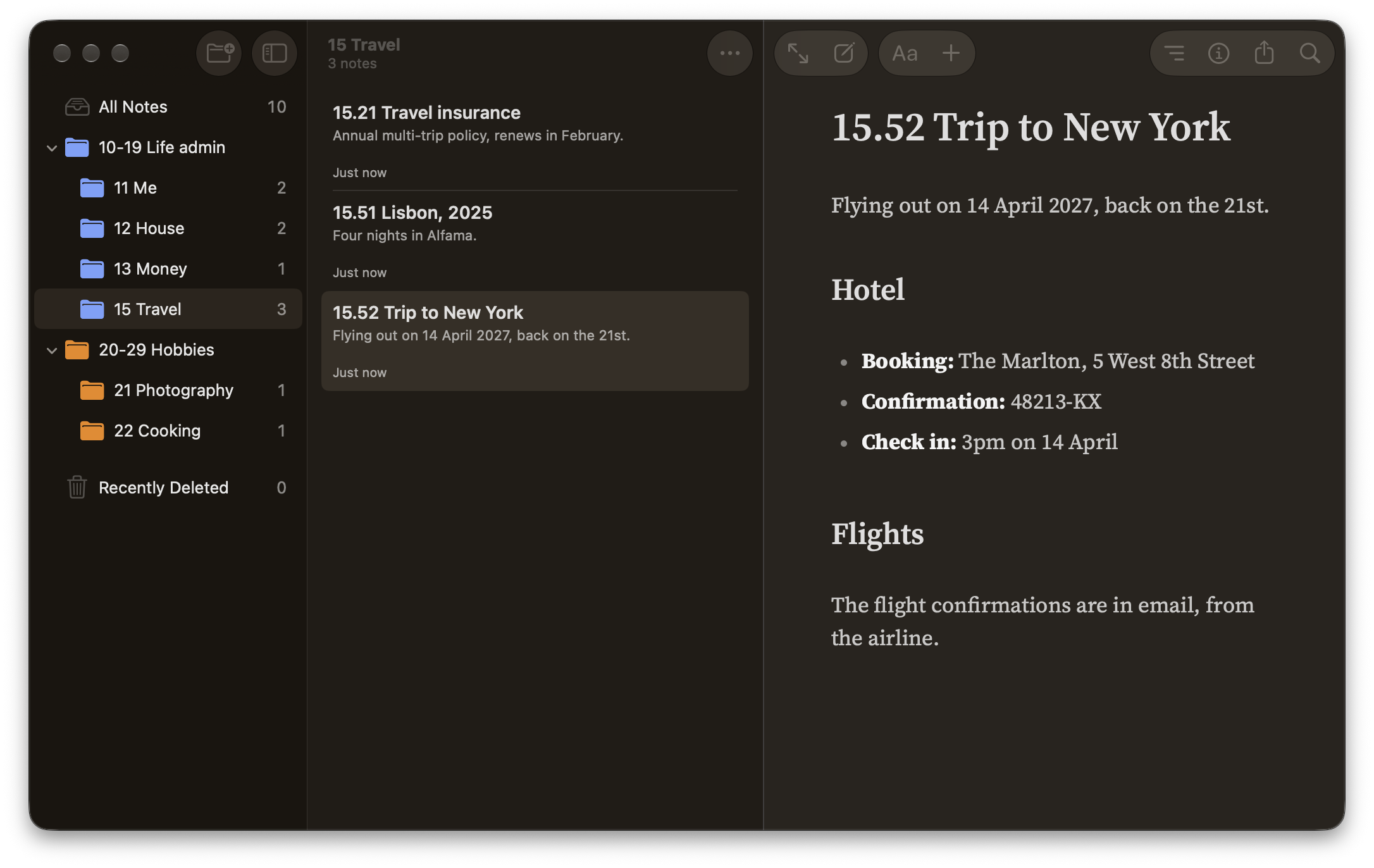
The numbers at the start of the folder names put them in order in Soot’s alphabetical sidebar. If you’d like to tell the areas apart at a glance, Edit Folder… gives an area a colour and its categories inherit it.
These are real folders in your library. You’ll see them in Finder or the Files app with the same numbers, and each note in them is an ordinary Markdown file.
One note for each ID
Johnny.Decimal’s own advice is to keep one note per ID in a notes app, and to make that note before you save anything anywhere else.
Say the last trip in 15 Travel was 15.51 Lisbon, 2025. When you book New York, make a note in the same folder and give it the heading 15.52 Trip to New York. The flight and hotel details both go in that note. A note’s first heading is its title in Soot, and the file’s name follows it.
Put in the note whatever you’d otherwise go hunting for: the dates, and the hotel’s address and confirmation number. You can drag the hotel’s booking PDF into the note as well, and Soot saves it as an attachment. The flight confirmations can stay in your email. Put the airline and the email subject in the trip note so you can find them again.
For the next trip, you need the next number. Sort the notes by title: choose Title from the Sort Notes menu in the Mac’s toolbar, or from Sort By on the iPhone and iPad. If the highest ID in Travel is 15.52, use 15.53 for the next one. Each folder keeps its own order, so Travel stays sorted by title whatever you choose elsewhere.
Finding a note by its number
Sometimes you remember the number but you’re in another folder. A search starts in the folder you’re in, and the top of the list shows how many notes match there and how many in All Notes.
Say you’re in 12 House and want to see what you have under Travel. Search for “15.” and you’ll see 12 House 0 · All Notes 4. Choose Show 4 in All Notes.
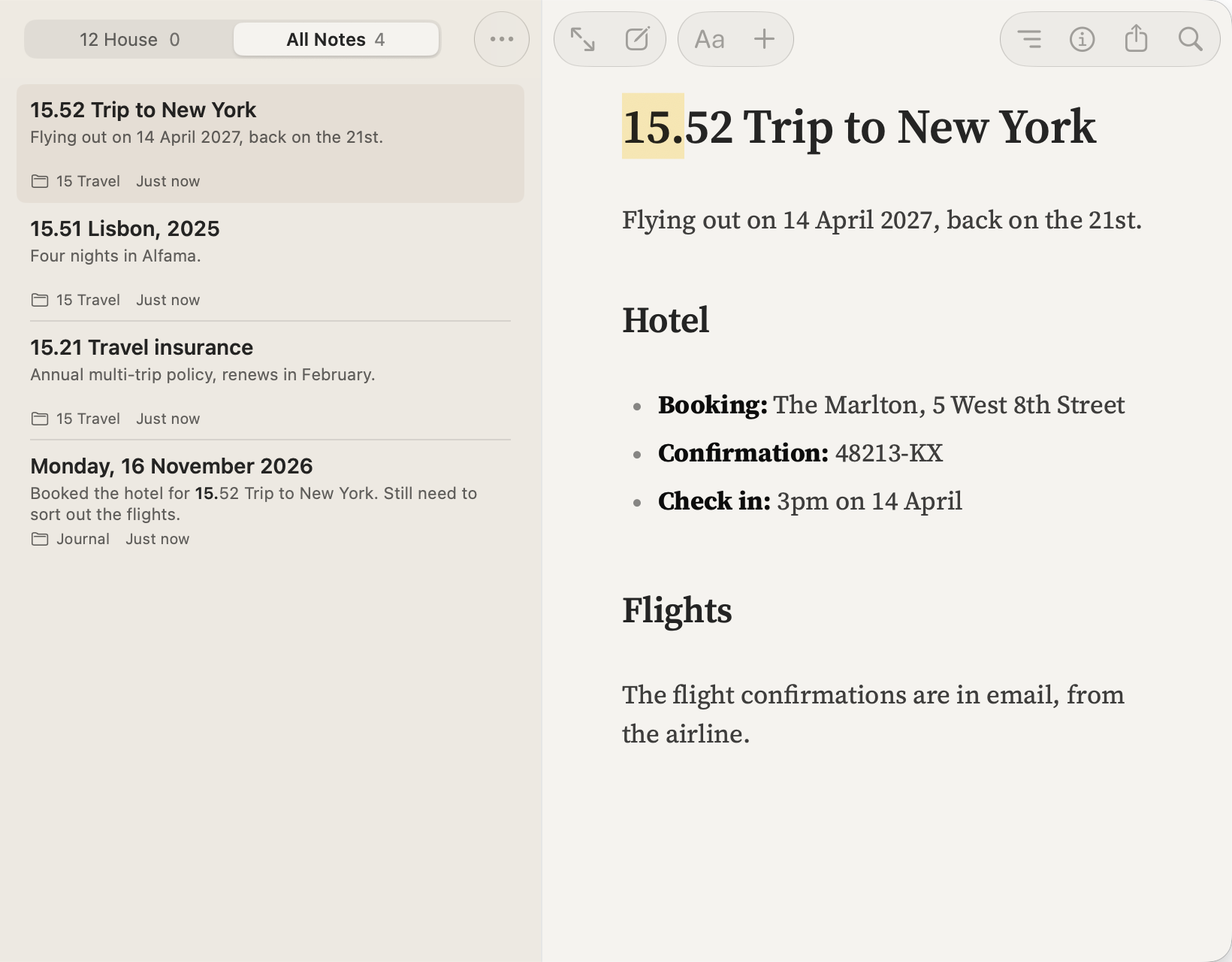

Three of the four are the notes in 15 Travel. The fourth is a Journal entry that mentions 15.52, because search reads the text of every note as well as its title. Each result names its folder, so you can see which three are in Travel and which one is in your Journal. Search for 15.52 and you get the trip note, along with the day you wrote about booking it.
Linking to an ID
Here’s how the link in that Journal entry got there. In today’s entry, press ⌘K on the Mac, or choose Link… from the + menu on the iPhone or iPad, type 15.52 and choose the trip note.
Later, open the trip note’s details and Linked from lists that Journal entry, with the sentence the link appears in.
While the trip’s coming up, you can pin 15.52 to keep it at the top of Travel, or add 15 Travel to Favourites so it’s at the top of the folder list.
Try it with one category
Pick something you’ve recently had to hunt for. Give it an ID, make its note, and write down where you found it.