Using PARA in Soot
Written by Rob, who makes Soot.
PARA is Tiago Forte’s way of organising notes into four folders. Projects have a goal and a finish line. Areas are things you look after over time. Resources are subjects you want to keep material on, and Archives are for things you’re no longer working on but might want again.
I’ve tried PARA myself. These days I keep my notes as a personal wiki, but if you prefer PARA, here’s how to set it up in Soot.
Four folders
On the Mac, File ▸ New Folder… makes each one. On the iPhone and iPad, it’s the New Folder button at the top right of the Folders screen. Soot lists folders alphabetically to begin with, which puts Archives first. Drag Projects to the top, followed by Areas, Resources and Archives.
Edit Folder… gives a folder a colour and an icon. Give each of the four a different colour and its subfolders inherit it.
These are real folders in your library. You’ll see the same four in Finder or the Files app, with every note in them an ordinary Markdown file.
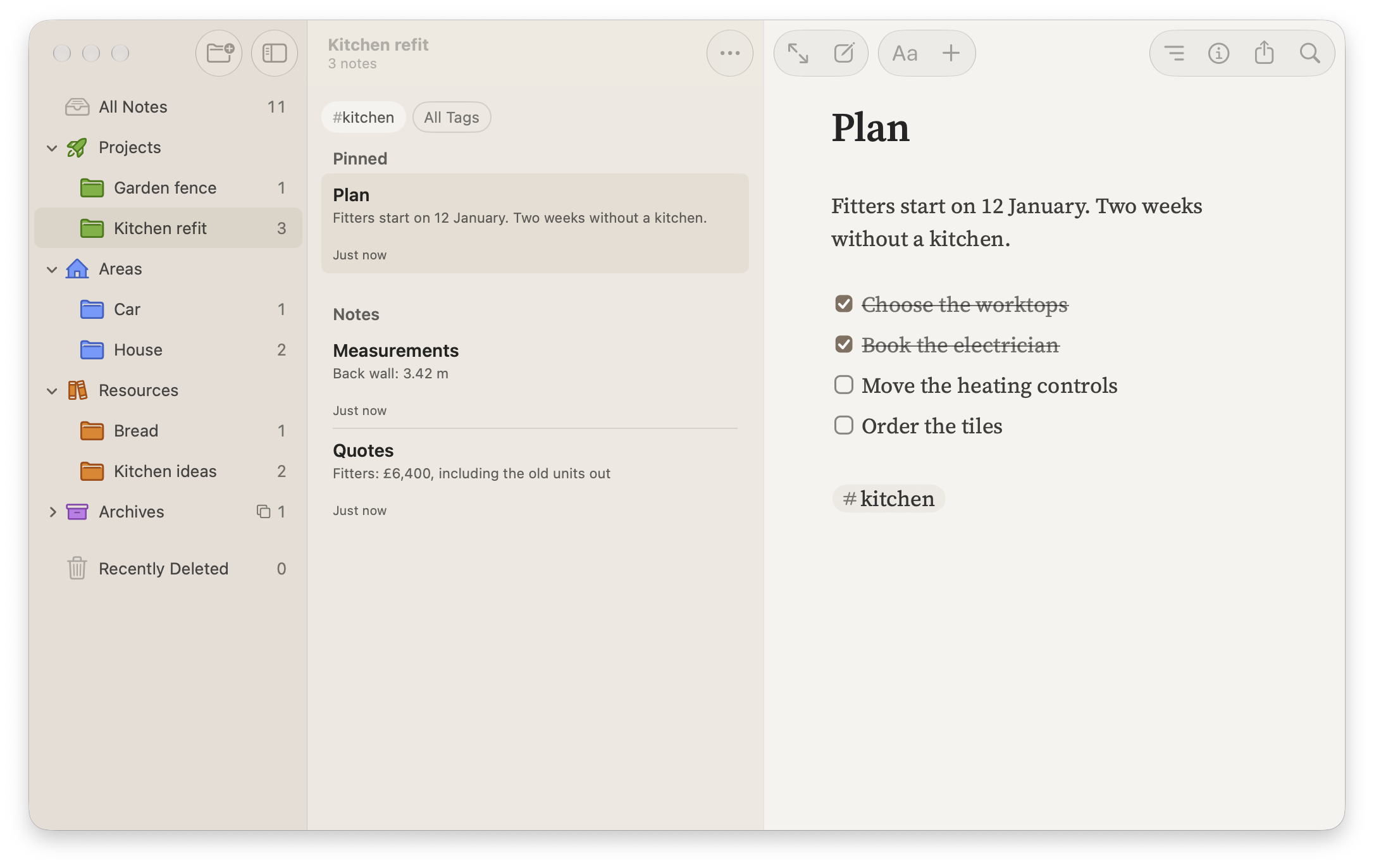
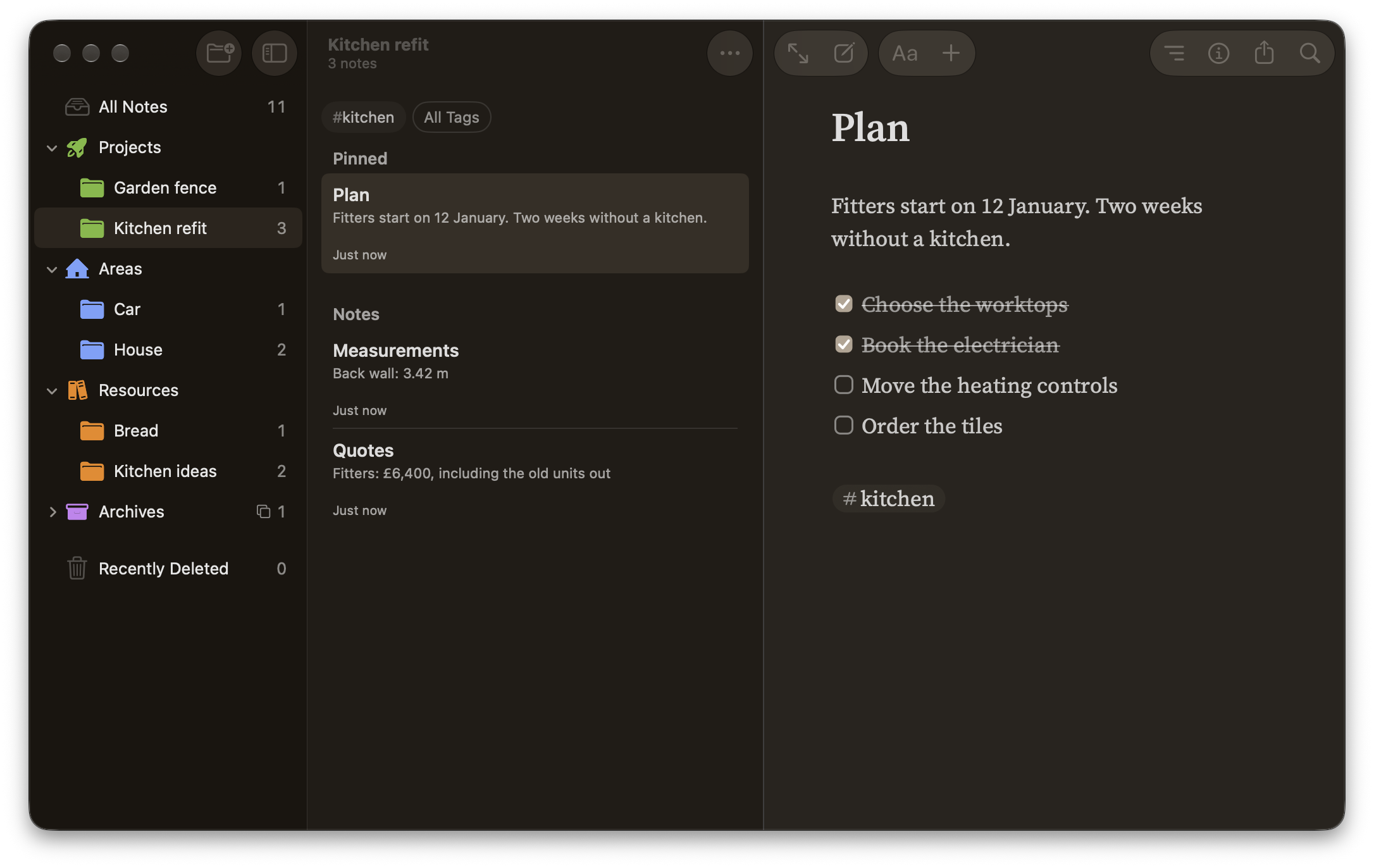
A folder for each project
Say you’re having the kitchen refitted. The refit has an end, so it’s a project: right-click Projects, or touch and hold it on the iPhone and iPad, choose New Folder Inside… and call it Kitchen refit. The quotes, the measurements and the plan go in there.
Looking after the house never ends, so House is a folder in Areas, for the boiler’s service record and the insurance. The photos of worktops and the articles about tiles you’ve been saving for years aren’t tied to this refit, so they go in a Kitchen ideas folder in Resources.
While the refit is under way, add Kitchen refit to Favourites. It appears at the top of the folder list, one click or tap away, and stays where it is inside Projects. If there’s a note you open every time, such as the plan, pin it to keep it at the top of the folder.
You can keep a checklist in a project note. If you need due dates or project status, you’ll want a task manager alongside Soot.
Finding things across the four
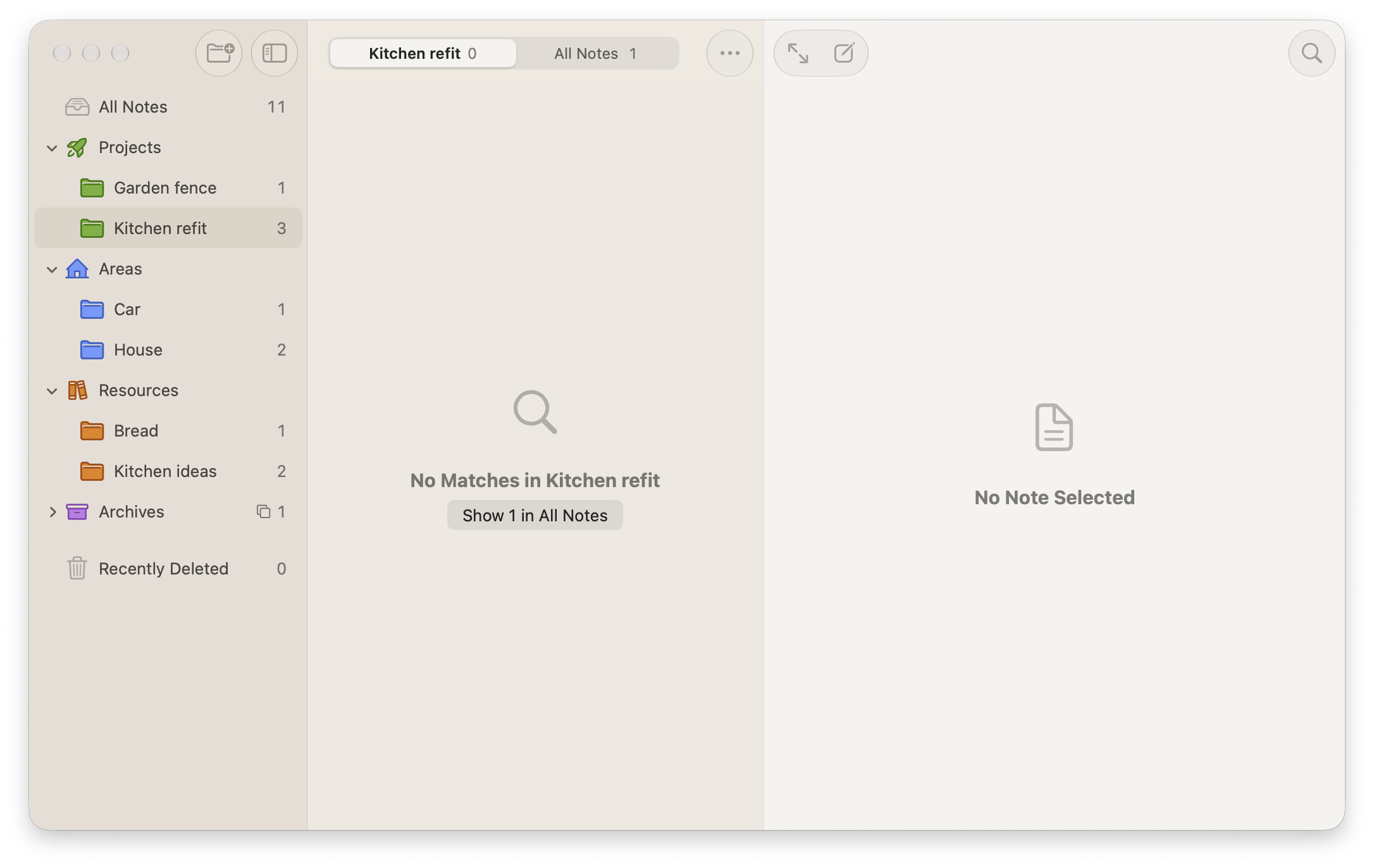
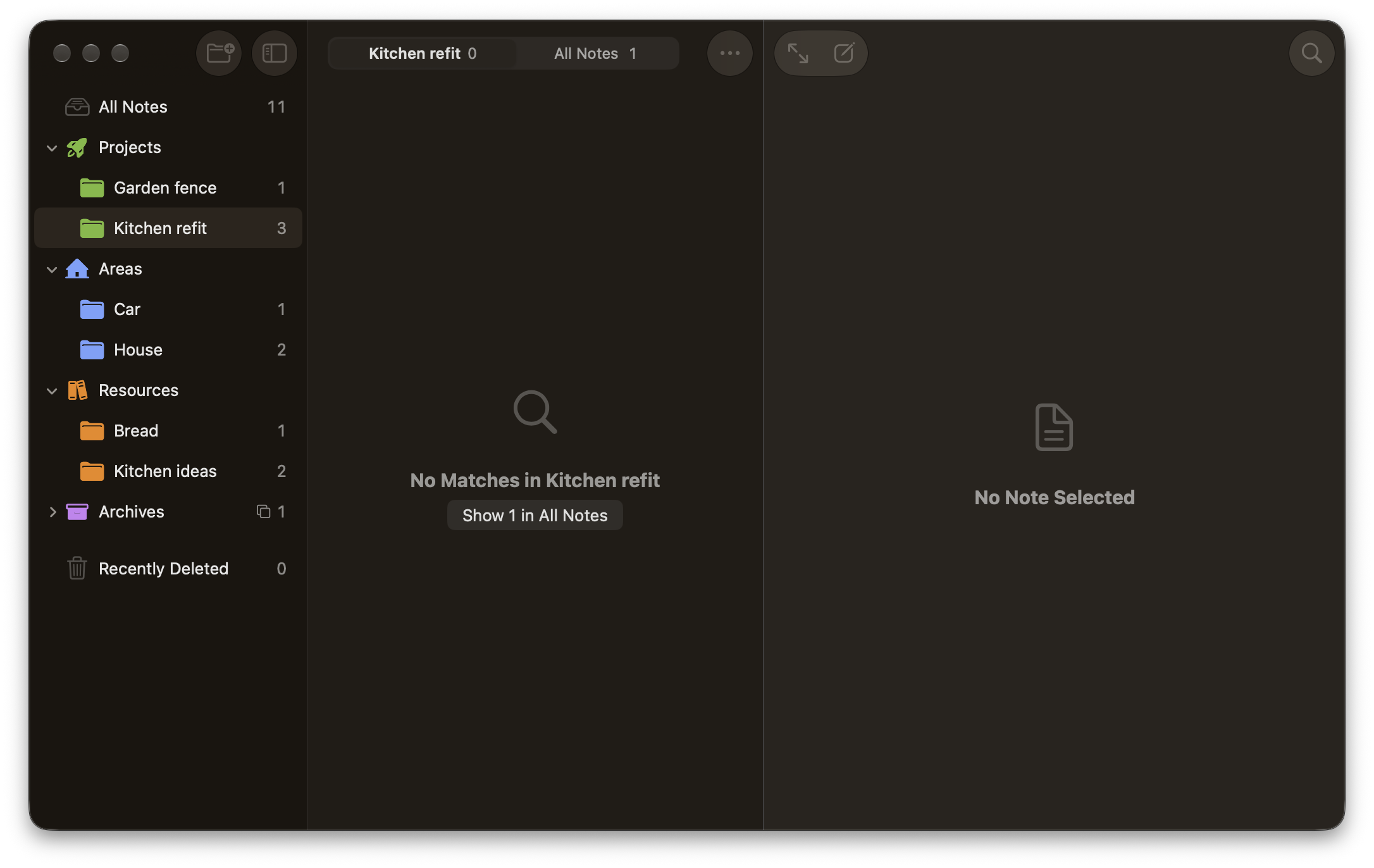
A search starts in the folder you’re in. While it runs, the top of the list shows how many notes match in that folder and how many in All Notes. Suppose you’re in Kitchen refit when the plumber asks when the boiler was last serviced. Search for “boiler” and you’ll see Kitchen refit 0 · All Notes 1. Choose Show 1 in All Notes to find the service record in House. Results from All Notes show which folder each note is in.
Tags work across folders too. Each folder shows only the tags its own notes use, and All Notes shows every tag. Select #kitchen in All Notes to see notes from your kitchen refit alongside the ones you keep in Kitchen ideas.
To link to another note or a heading within it, press ⌘K on the Mac, or choose Link… from the + menu on the iPhone or iPad. Open a note’s details and Linked from lists every note that links to it, with the sentence each link appears in.
Daily notes
Soot’s Journal keeps an entry for each day you write in it, and Today opens today’s entry or starts a blank one titled with the date. The Journal sits directly below All Notes in the sidebar, apart from the folder list, so it doesn’t add a fifth folder to your four.
If the plumber rings while you’re in the middle of something, you can jot the call down in today’s Journal entry and link it to your kitchen refit plan. The plan’s Linked from list will take you back to the entry.
When a project’s finished
When the kitchen refit is finished, drag its folder into Archives. The link from your Journal entry to the plan will still work. You can still find the archived notes in All Notes and its search results.
Try it with your own projects
Soot is free to try during the beta on Mac, iPhone and iPad. The editor stays free afterwards. Sync is part of Soot Pro.