Choose how Markdown appears
Soot stores formatting as Markdown: symbols such as ** around bold text, or # before a heading. You choose whether you see those symbols as you write. The note’s file is the same whichever you choose.
The choice applies to every note, on the device you set it on.
| Choice | What you see |
|---|---|
| Formatted | Formatted text, with no symbols. This is the default. |
| While editing | The symbols on the lines you’re editing, and on any lines you’ve selected. A table you’re editing shows as Markdown. |
| Always show Markdown | Every symbol, on every line. |
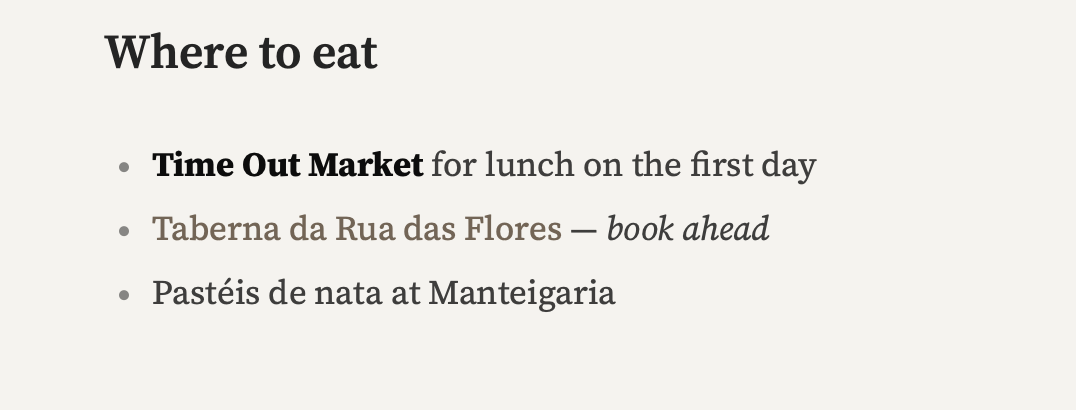
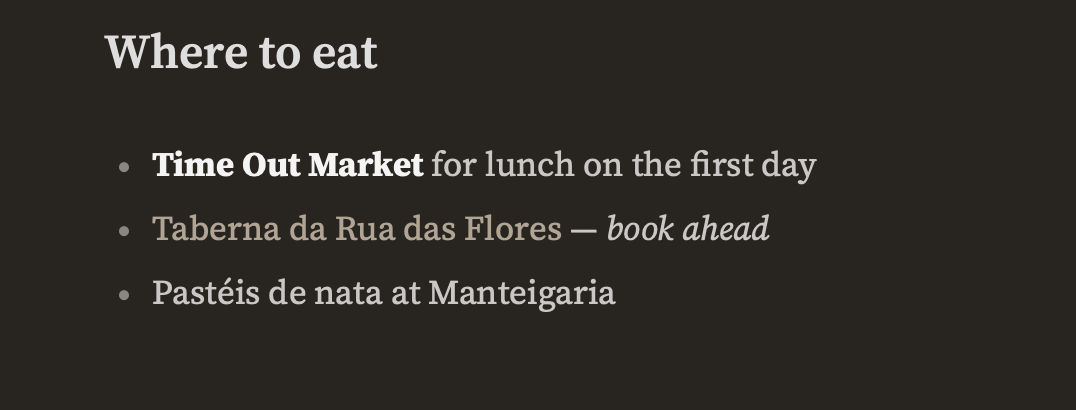
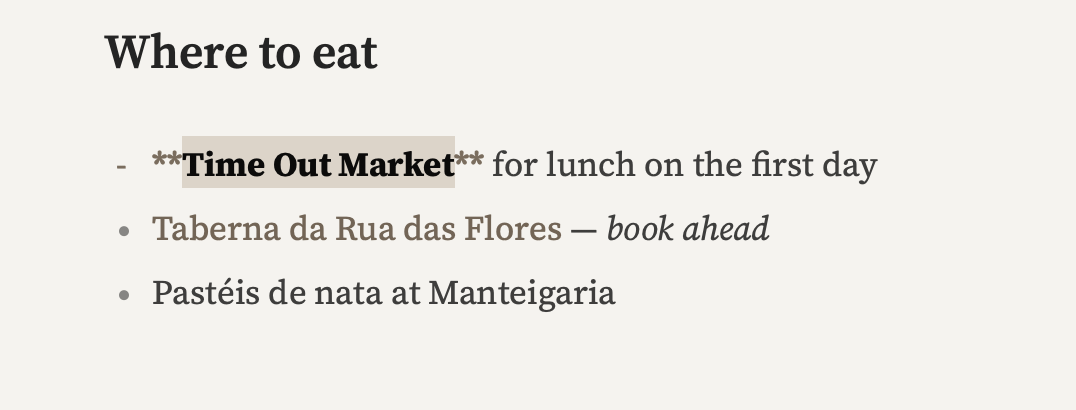
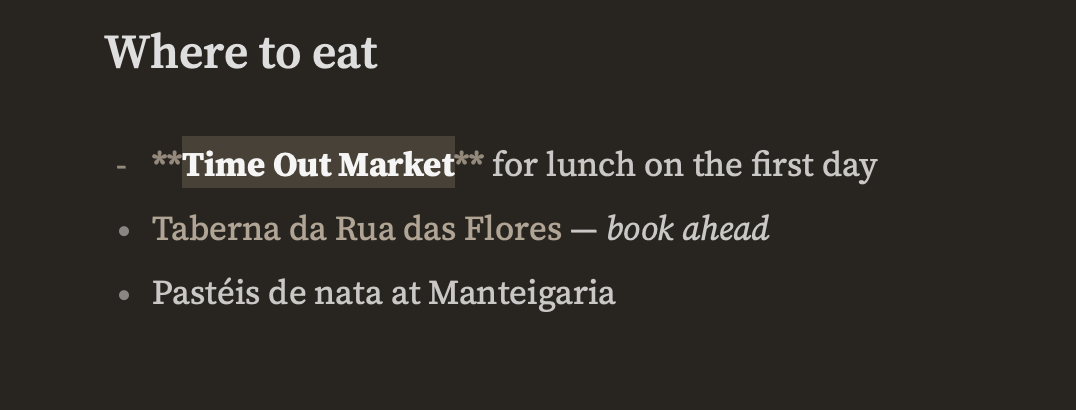
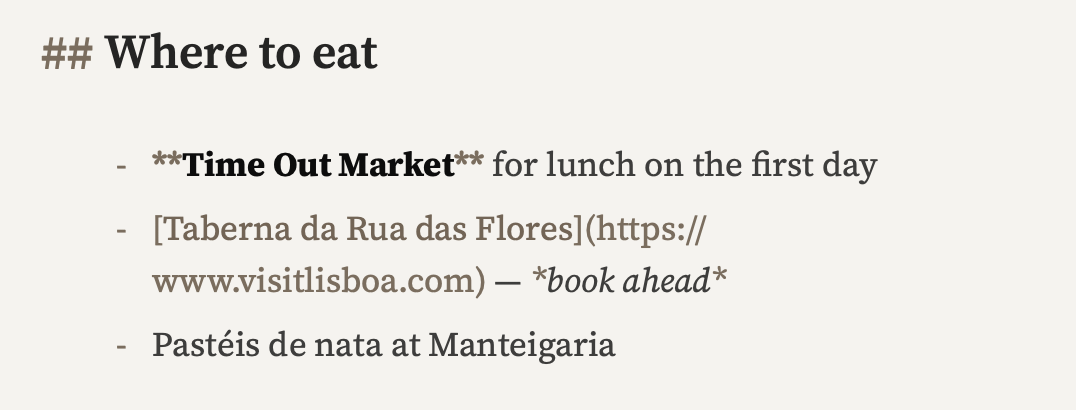
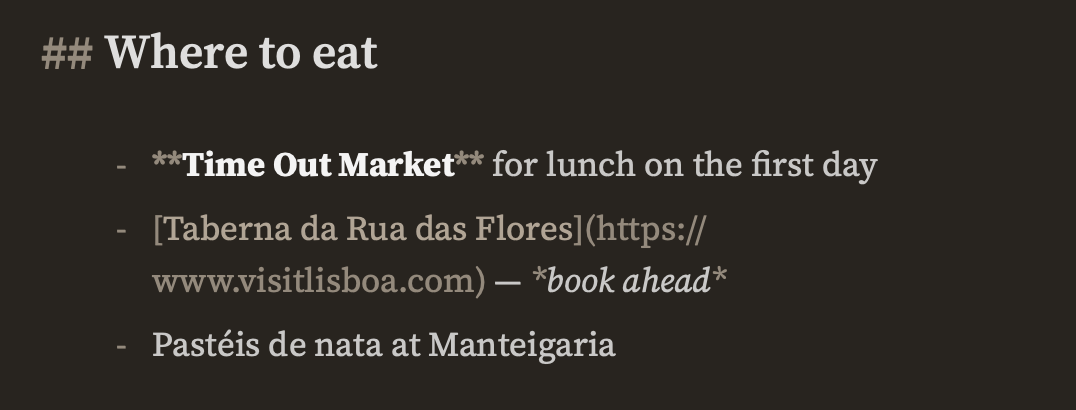
The Mac’s View menu calls the last two Show While Editing and Always Show.
Change it on the Mac
Choose View ▸ Markdown, then Formatted, Show While Editing or Always Show. Press ⌘/ to cycle through the three.
The same three choices are in Soot ▸ Settings… under Editor, next to Show Markdown.
Change it on iPhone and iPad
-
Tap Settings (the gear) at the top left of the Folders screen.
-
Tap Editor.
-
Under Show Markdown, tap Formatted, While editing or Always show Markdown.
On an iPad with a keyboard, you can also choose View ▸ Markdown in the menu bar, or press ⌘/.
Having trouble? Email hello at sootsync dot com and I’ll help.