Add photos, scans, files and recordings
You can add photos, PDFs and other files to a note, as well as scans, sketches and voice recordings. Soot copies each one into your library beside the note, so the note keeps working if the original is moved or deleted.
Large photos are resized to no more than 2048 pixels on the longest side and saved as JPEGs. PNGs and GIFs are kept unchanged. With Soot Pro, a file over 250 MB can’t sync, so it’s only on the device you added it on.
Open the Insert menu
- On the Mac, choose Format ▸ Insert, or click Insert (+) in the toolbar.
- On iPhone, tap Insert (+) in the bar above the keyboard.
- On iPad, tap Insert (+) at the top right of the note.
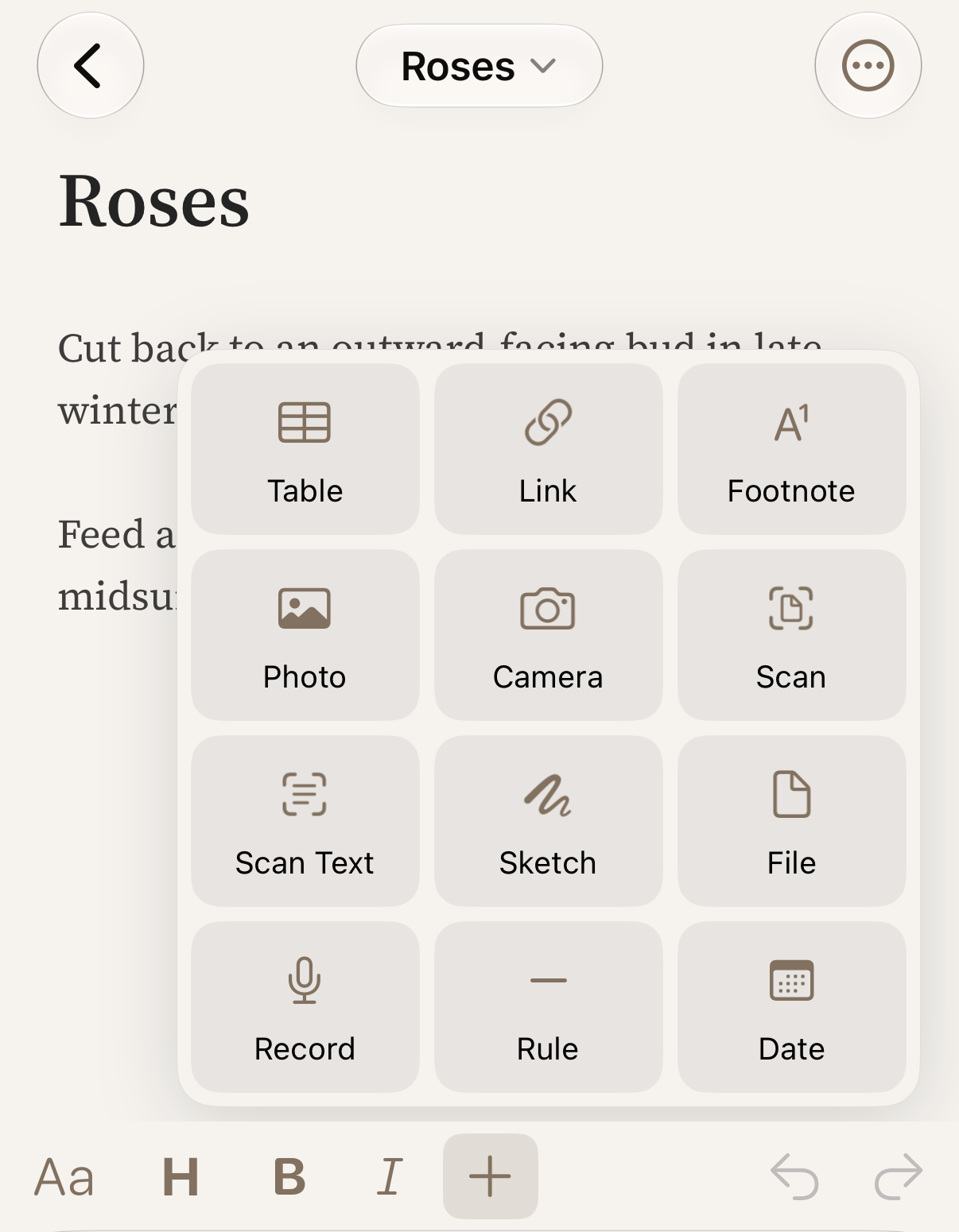
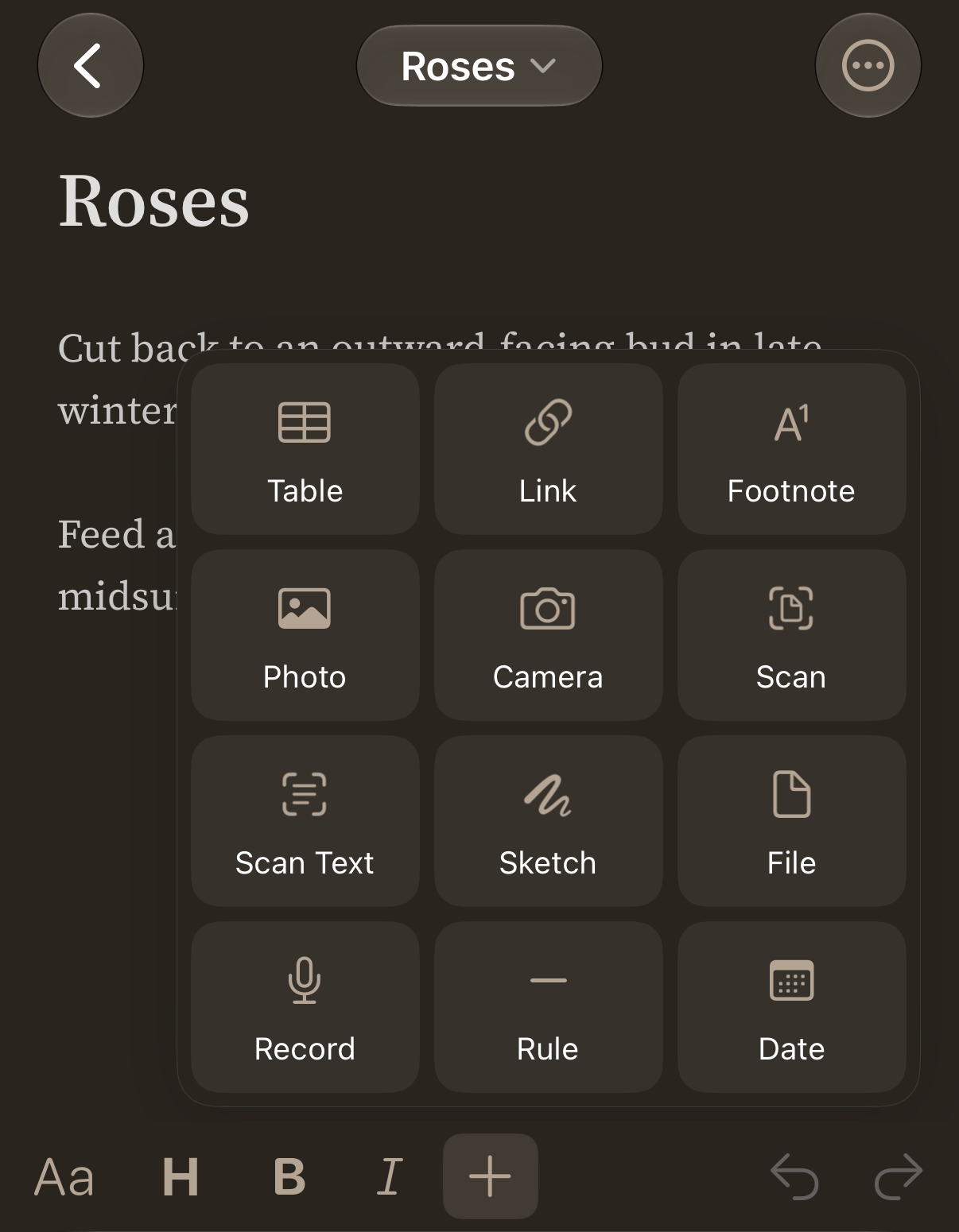
Each picture, file, scan or recording goes on a line of its own. In a list or a table, Insert has only Link, Footnote and Date.
Add a photo or file
- On the Mac, choose Format ▸ Insert ▸ Image… or File…, or drag a file into the note from Finder, or paste it.
- On iPhone and iPad, tap Insert (+), then Photo, Camera or File. You can also paste a picture, or drag one in on iPad.
A PDF shows its first page in the note, and search finds the words in it.
Scan a document
-
On iPhone or iPad, tap Insert (+), then Scan.
-
Scan each page.
-
Tap Save.
The pages go into the note as one PDF. A few seconds later, the words on the pages become searchable.
To insert text from a label, book page or other printed material, tap Insert (+), then Scan Text, and point the camera at it.
On the Mac, you can scan with your iPhone or iPad: right-click in the note where the scan should go, then choose Import from iPhone or iPad ▸ Scan Documents. Take Photo and Add Sketch are in the same menu.
Draw a sketch
On iPhone or iPad, tap Insert (+), then Sketch. Draw, then tap Done (the tick). The sketch goes into the note as a picture.
Record audio
-
On the Mac, choose Format ▸ Insert ▸ Record Audio. On iPhone and iPad, tap Insert (+), then Record. The recording appears in the note and starts straight away.
-
To stop, choose Stop Recording on the Mac, or tap Stop on iPhone and iPad. Leaving the note stops it too.
The first time you record, Soot asks to use the microphone before it starts. To play a recording, click or tap its play button.
Open, rename or remove an attachment
To see a picture, PDF or file full size, double-click or double-tap it to open it in Quick Look.
Right-click a picture, file or recording on the Mac, or touch and hold it on iPhone and iPad, for Quick Look, Copy, Share, Rename… and Delete. On the Mac you’ll also find Open With and Show in Finder.
When you remove a picture, file or recording from a note, Soot deletes its file from your library once you leave the note. It doesn’t go to Recently Deleted, so if you didn’t mean to remove it, undo before you leave the note.
Having trouble? Email hello at sootsync dot com and I’ll help.