Organise with folders, tags and pins
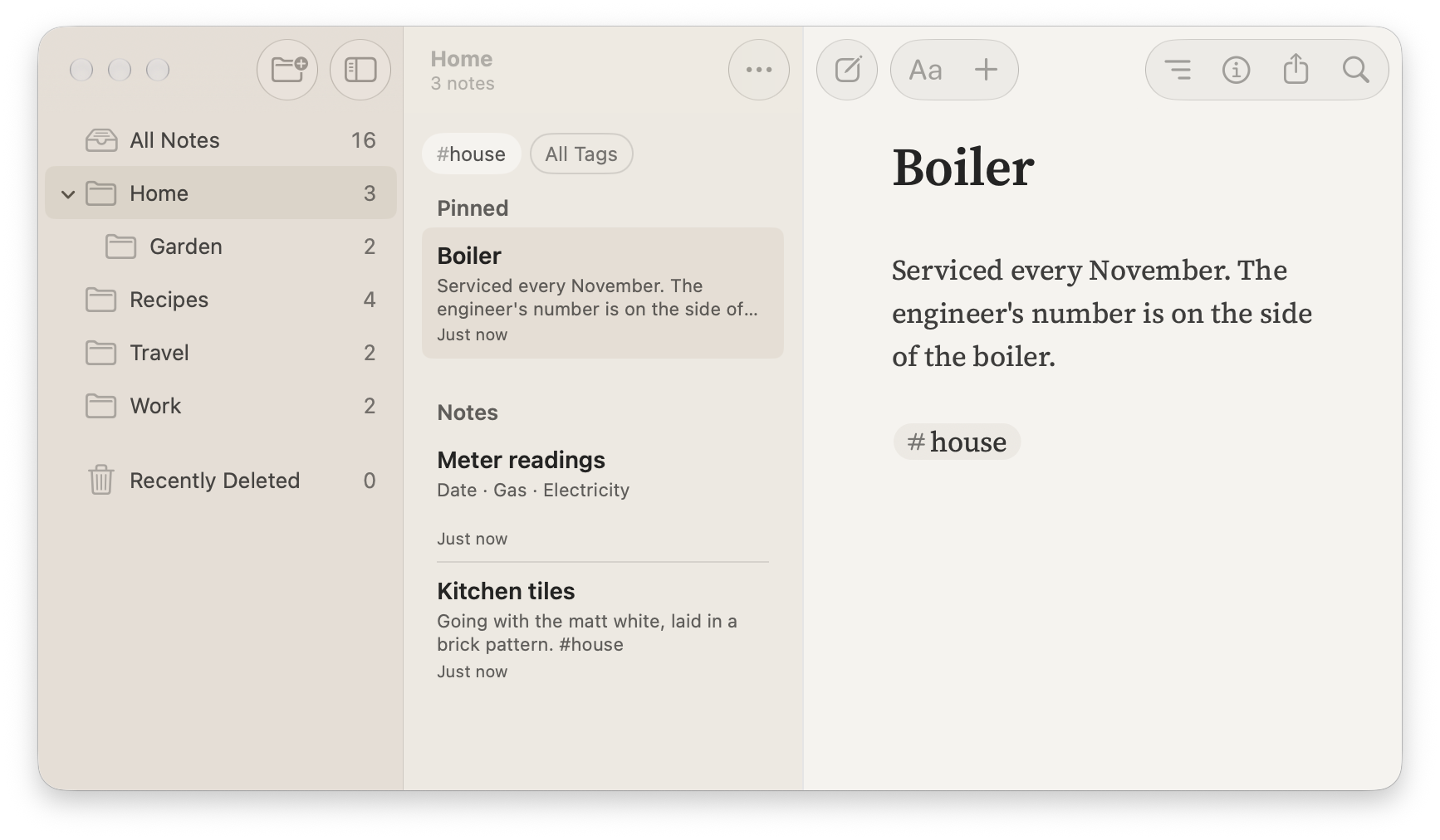
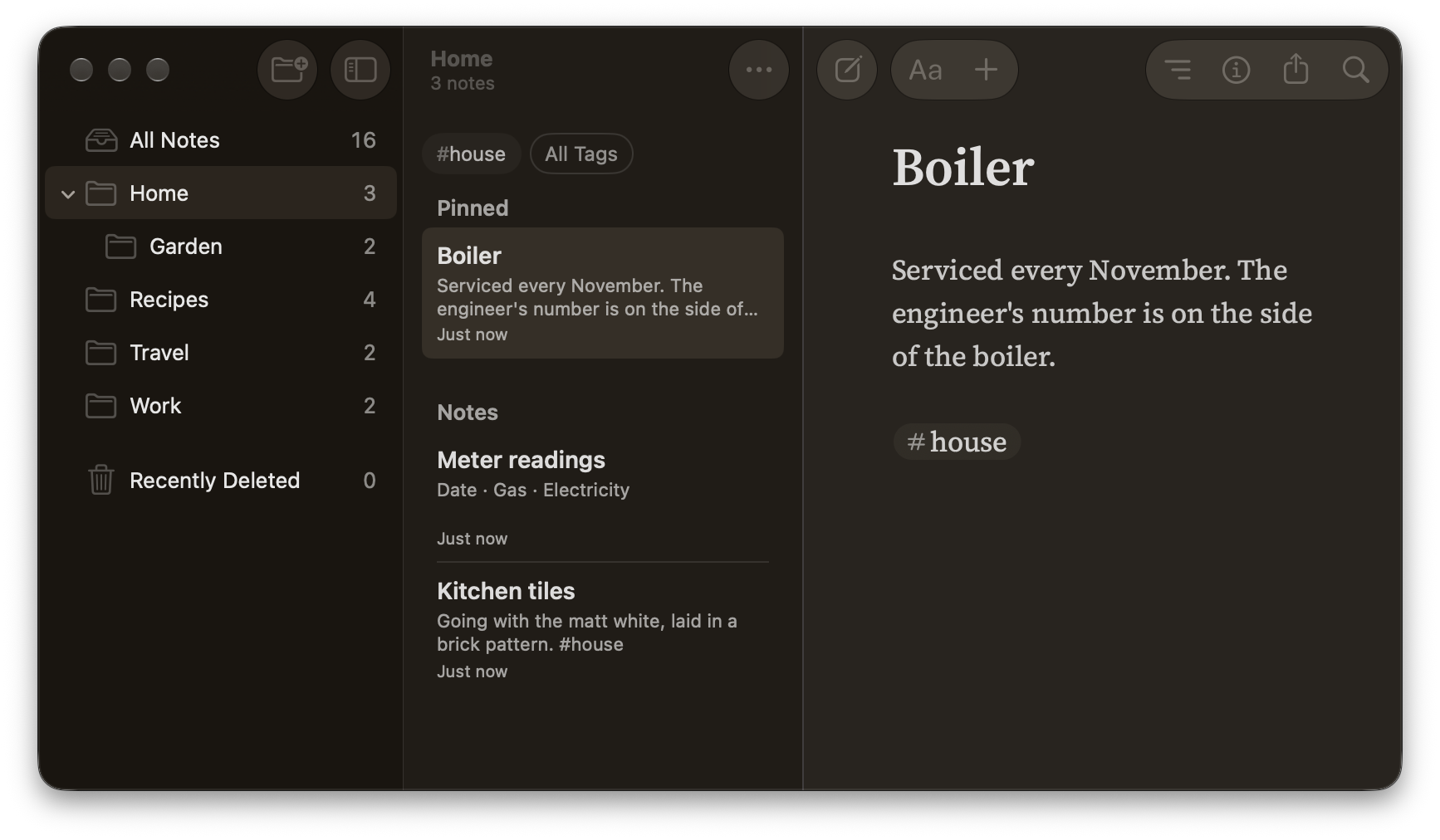
A note lives in one folder, and can have as many tags as you like. Tags group notes from different folders, such as every recipe wherever it’s kept. A pin keeps a note at the top of its folder, and under Pinned in All Notes.
Folders in Soot are the folders in your library, so you see the same ones in Finder or the Files app. When you move notes in Soot, Soot updates the links to them.
Make a folder
- On the Mac, choose File ▸ New Folder… To put it inside another folder, right-click that folder and choose New Folder Inside…
- On iPhone and iPad, tap New Folder (the folder with a +) at the top right of the Folders screen. To put it inside another folder, touch and hold that folder and tap New Folder Inside…
Change a folder’s name, colour or icon
-
Right-click the folder on the Mac, or touch and hold it on iPhone and iPad, and choose Edit Folder…
-
Edit the name, or click or tap the icon button beside it to choose a colour or icon. You can search the icons by name.
-
Click or tap Done.
A subfolder uses its parent folder’s colour unless you give it a colour of its own.
Add a folder to Favourites
Favourites sit at the top of the folder list, so even a folder nested inside others is one click or tap away.
Right-click a folder on the Mac, or touch and hold it on iPhone and iPad, and choose Add to Favourites. On iPhone and iPad, you can also swipe right on it.
The folder stays in its original location. To remove it from Favourites, choose Remove from Favourites from its menu. Drag favourites up or down to change their order.
Put your folders in order
Drag a folder up or down to change its position. On iPhone and iPad, touch and hold it first, then drag. To move a folder inside another, drop it onto that folder.
To restore alphabetical order:
- For subfolders, right-click the folder containing them and choose Sort Subfolders by Name.
- For top-level folders, right-click All Notes and choose Sort Folders by Name.
On iPhone and iPad, touch and hold instead of right-clicking.
Your folder order and favourites sync to your other devices with Soot Pro.
Move notes into a folder
- On the Mac, drag the note onto a folder in the sidebar, or right-click it and choose Move To. To select several first, ⌘-click or Shift-click them.
- On iPhone and iPad, touch and hold the note and tap Move to… To move several, tap •••, then Select Notes, choose them, and tap Move to… On iPad, you can also drag a note onto a folder.
Delete a folder
Deleting a folder also deletes the notes inside it. They go to Recently Deleted, where they stay for 30 days. To delete a folder, right-click it on the Mac and choose Delete Folder…, or touch and hold it on iPhone and iPad and tap Delete.
Add tags
-
Open Note Details: click ⓘ in the toolbar on the Mac, or tap ⓘ on iPhone and iPad.
-
In the Tags field, type a tag and press Return, or choose one from the suggestions.
Tags added here don’t appear in the note’s text. To go straight to the Tags field, choose File ▸ Tags… (⌃⌘T) on the Mac, or ••• ▸ Tags… on iPhone and iPad.
You can also type # and a word anywhere in a note’s text, such as #recipes. Either way, a tag can have letters, numbers, hyphens, underscores and slashes, but not spaces.
Above the note list are buttons for the tags used most in the folder you’re looking at. Click or tap a tag there to see only the notes with that tag. To choose from every tag, click or tap All Tags. To clear the filter, click or tap the selected tag again.
A tag with a slash, such as #home/garden, is a tag of its own: choosing #home doesn’t show the notes tagged #home/garden.
Change or remove a tag everywhere
Right-click a tag above the note list on the Mac, or touch and hold it on iPhone and iPad.
- Edit Tag… changes its name in every note that has it, or its colour wherever it shows. If you give it the name of another tag, the two become one.
- Remove Tag… takes the tag out of every note that has it. The notes themselves stay.
Pin a note
On the Mac, right-click the note and choose Pin Note. On iPhone and iPad, touch and hold it and tap Pin, or swipe right on it. A pinned note sits under Pinned at the top of its folder, and at the top of All Notes. The pin is saved in the note, so with Soot Pro it syncs to your other devices.
Sort a folder
On the Mac, click Sort Notes (…) in the toolbar. On iPhone and iPad, tap •••, then Sort By. Choose Date Edited, Date Created or Title, then Newest First or Oldest First (A to Z or Z to A for Title). The order you choose is for that folder, on that device only. Pinned notes always come first.
Having trouble? Email hello at sootsync dot com and I’ll help.